
How to Choose the Right USB-C Cable for Your Laptop in 2026: The Complete Guide
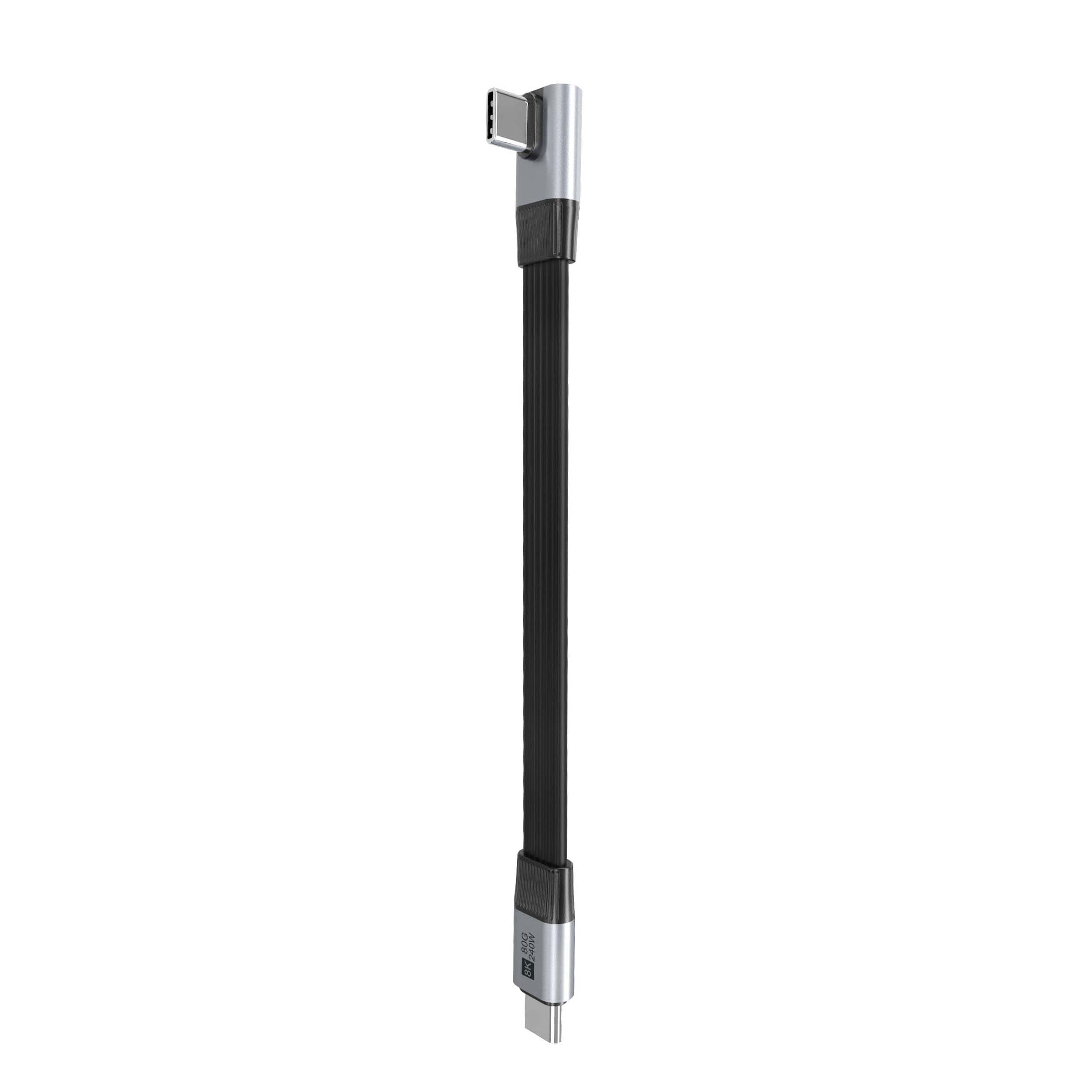
Let us be honest — buying a USB-C cable in 2026 is confusing. You have USB4, Thunderbolt 4, USB 3.2, USB 2.0, 100W, 240W, 40Gbps, 80Gbps, passive cables, active cables, and about fifty different cable manufacturers all claiming their product is the best. Sound familiar? Eilinks Electronics, a professional USB-C cable manufacturer, wrote this guide to cut through the noise and help you pick exactly the right cable for your laptop — every time.
Understanding the USB-C Ecosystem in 2026
Before we dive into specific recommendations, let us map out the landscape. USB-C is a connector type (the physical oval shape), not a performance specification. The actual capabilities of a USB-C cable depend entirely on which protocol it implements:
- USB 2.0: 480Mbps data, 15W charging (basic charging cables, cheap accessories)
- USB 3.2 Gen 1: 5Gbps data, 15W charging (common on budget laptops)
- USB 3.2 Gen 2: 10Gbps data, 100W charging (mid-range laptops and chargers)
- USB4 Version 1.0: 20Gbps or 40Gbps data, 100W charging
- USB4 Version 2.0: 80Gbps data, 240W charging (cutting edge)
- Thunderbolt 4: 40Gbps data, 100W charging, PCIe tunneling, security features
All of these use the same USB-C connector, which is why they are so easily confused. A cable that looks identical to your eye may support 480Mbps or 80Gbps — and the price difference between them can be 10x or more.
Step 1: Identify Your Laptop’s USB-C Port Capabilities
This is the most important step, and most people skip it. Your laptop’s USB-C port may not support everything the cable can do — or vice versa. Here is how to check:
On Windows 11
- Open Device Manager → expand Universal Serial Bus controllers
- Look for labels like “USB4”, “Thunderbolt”, “USB 3.2” or “USB 2.0”
- On Dell, HP, or Lenovo laptops, you may find detailed port info in the BIOS or the manufacturer’s spec sheet
- The Dell XPS, ThinkPad X1 Carbon, and MacBook Pro pages on usbcfactory.com/shop list compatible cable specs for popular models
On macOS
- Click the Apple menu → About This Mac → System Report → USB
- Thunderbolt 4 or USB4 ports will be clearly labeled
- Apple Silicon Macs (M3/M4) support USB4 2.0 on all USB-C ports
What You Are Looking For
Write down two numbers:
- Maximum data speed (40Gbps, 80Gbps, 10Gbps, 5Gbps, 480Mbps)
- Maximum power delivery (100W or 240W)
These two numbers define what cable you actually need. Buying a cable rated for more than your port can handle is a waste of money. Buying one rated for less means slow charging and slow data.
Step 2: Match the Cable to Your Primary Use Case
Cables that are great for charging may be terrible for data transfer, and vice versa. Here is the decision tree we use at Eilinks Electronics to help customers choose:
Use Case A: Laptop Charging Only
If you only need to charge your laptop, you do not need an expensive high-speed data cable. What matters is:
- Power rating: Check your laptop’s required wattage. A 15-inch MacBook Pro needs 96W–140W. A gaming laptop may need 180W–230W. A thin ultrabook needs 45W–65W.
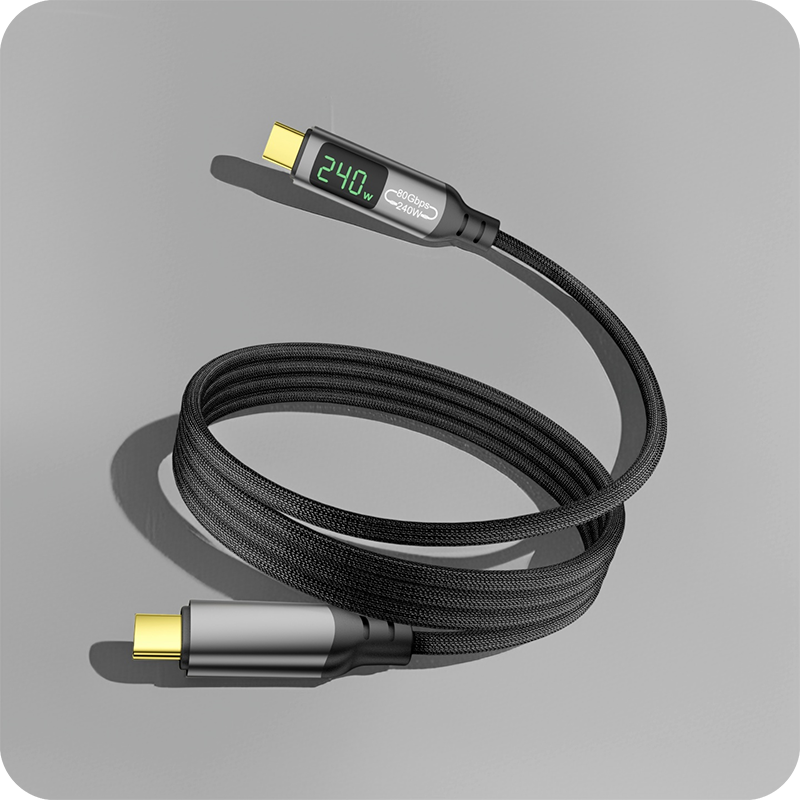
- PD 3.1 EPR: If your laptop supports charging above 100W, you need an EPR-rated 240W USB-C cable. Standard USB-C cables are limited to 100W.
Browse EPR-rated 240W USB-C charging cables at Eilinks Electronics.
Use Case B: Data Transfer + Charging (External SSD, Docking Station)
If you connect an external SSD, docking station, or backup drive, you need a cable that handles both power and high-speed data:
- 10Gbps minimum: For SATA SSDs and USB 3.2 Gen 2 NVMe drives
- 40Gbps (Thunderbolt 4 or USB4): For NVMe drives at full speed, or Thunderbolt docks
- 80Gbps (USB4 2.0): For cutting-edge NVMe drives approaching real-world 7GB/s+ speeds
Eilinks Electronics recommends our USB4 cables (40Gbps/80Gbps) for this use case — they cover both USB4 and Thunderbolt 3/4 compatibility and support up to 240W charging with EPR-rated versions.
Use Case C: Video Output (External Monitor)
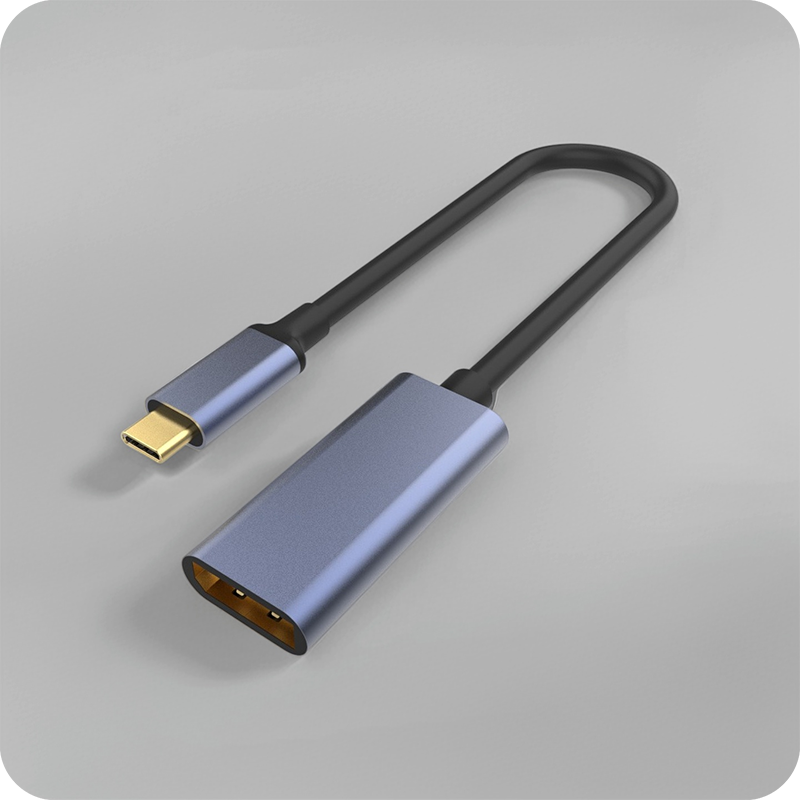
Connecting a monitor via USB-C requires the cable to carry a DisplayPort or HDMI signal in addition to power:
- Dual 4K @ 60Hz: Thunderbolt 4 or USB4 1.0 minimum
- Single 8K @ 60Hz or 4K @ 144Hz: USB4 2.0 or Thunderbolt 4 with DP 1.4/2.1
- Long cable runs (3m+): Active USB-C cables (optical or retimer-based) to maintain signal integrity
Not all USB-C ports support video output. On some laptops, only specific USB-C ports (often marked with a display icon or the letter “D”) support display output. Check your laptop manual.
Use Case D: External GPU (eGPU)
Running an external graphics card over USB-C requires Thunderbolt 4 — this is one area where Thunderbolt 4’s mandatory PCIe tunneling requirement actually matters. USB4 PCIe support varies by laptop manufacturer, making Thunderbolt 4 the safer choice for eGPU setups.
Step 3: Understand Cable Length Trade-offs
Cable length has a direct impact on performance. This is one of the most overlooked factors when buying USB-C cables:
| Cable Length | USB 3.2 / USB4 1.0 | USB4 2.0 / Thunderbolt 4 | 240W EPR |
|---|---|---|---|
| 0.5m (1.6ft) | Full speed up to 40Gbps | Full speed up to 80Gbps | Yes, with EPR |
| 1m (3.3ft) | Full speed up to 40Gbps | Full speed up to 80Gbps | Yes, with EPR |
| 2m (6.6ft) | May drop to 20Gbps | 40Gbps certified; 80Gbps at 2m varies | Yes, with EPR (quality dependent) |
| 3m (10ft) | Typically 10Gbps | Active cables needed for 40Gbps+ | Usually requires active EPR cable |
For most laptop users, a 1m or 2m cable is the sweet spot. Eilinks Electronics offers USB-C cable options from 0.5m to 3m, with active EPR cables available for longer runs at full 240W / 80Gbps performance.
Step 4: Avoid Common Cable Buying Mistakes
Mistake 1: Buying Based on Price Alone
Amazon is full of USB-C cables with inflated speed ratings that do not actually achieve them. A $5 “USB4 80Gbps” cable is almost certainly a counterfeit or mislabeled USB 3.0 cable. Always look for USB-IF certification logos and verify the product is listed in the official USB-IF certification registry at usb.org.
Mistake 2: Ignoring EPR Requirements for 240W Charging
Standard USB-C cables are rated for 20V / 5A = 100W maximum. If you try to push 240W (48V / 5A) through a non-EPR cable, the cable may overheat or fail. This is a genuine safety concern. Make sure your 240W USB-C charger is paired with an EPR-rated cable — Eilinks Electronics clearly labels all our EPR cables with the 240W rating.
Mistake 3: Assuming All USB-C Ports Are Equal
Many laptops have multiple USB-C ports with different capabilities. A common scenario: a laptop has two USB-C ports, but only one supports Thunderbolt 4 and 100W charging, while the other is USB 3.2 Gen 2 (10Gbps, 15W). Plugging a Thunderbolt 4 eGPU dock into the wrong port will result in degraded or no performance.
Mistake 4: Buying a Data Cable for Charging (Or Vice Versa)
Some USB-C charging cables (often sold with phones) are wired for power only and have no data lines. These will charge your laptop but cannot transfer data. Always verify that your cable supports data transfer if you need both functions.
Step 5: Check Compatibility with Your Ecosystem
Docking Station Compatibility
If you use a USB-C or Thunderbolt dock, check the dock’s specifications carefully. Many docks require specific power delivery profiles to function correctly. Eilinks Electronics tests compatibility with all major Thunderbolt 4 and USB4 docking stations, and our technical team can recommend the right cable for your specific setup — reach out via our contact page.
Gaming Laptop Considerations
Gaming laptops in 2026 often require 180W–230W charging, which exceeds standard 100W USB-C PD. For these machines, you need a USB4 or Thunderbolt cable with 240W EPR support AND a charger that can deliver that wattage. Eilinks Electronics‘ gaming laptop cable lineup includes EPR-rated USB4 cables and high-wattage charging solutions tested with ASUS ROG, MSI, and Razer laptops.
Our Recommended Cable Picks by Laptop Type
| Laptop Type | Recommended Cable | Key Feature |
|---|---|---|
| Ultrabook (45W–65W charging) | USB-C 100W PD Cable | Budget-friendly, reliable 100W |
| MacBook Pro 14″/16″ (96W–140W) | EPR USB-C 240W Cable | Full 140W charging, 40Gbps data |
| Gaming Laptop (180W–230W) | EPR USB4 240W Cable | 240W + 40Gbps + gaming tested |
| Workstation / Creator (high-speed storage) | USB4 2.0 80Gbps Cable | 80Gbps throughput for NVMe drives |
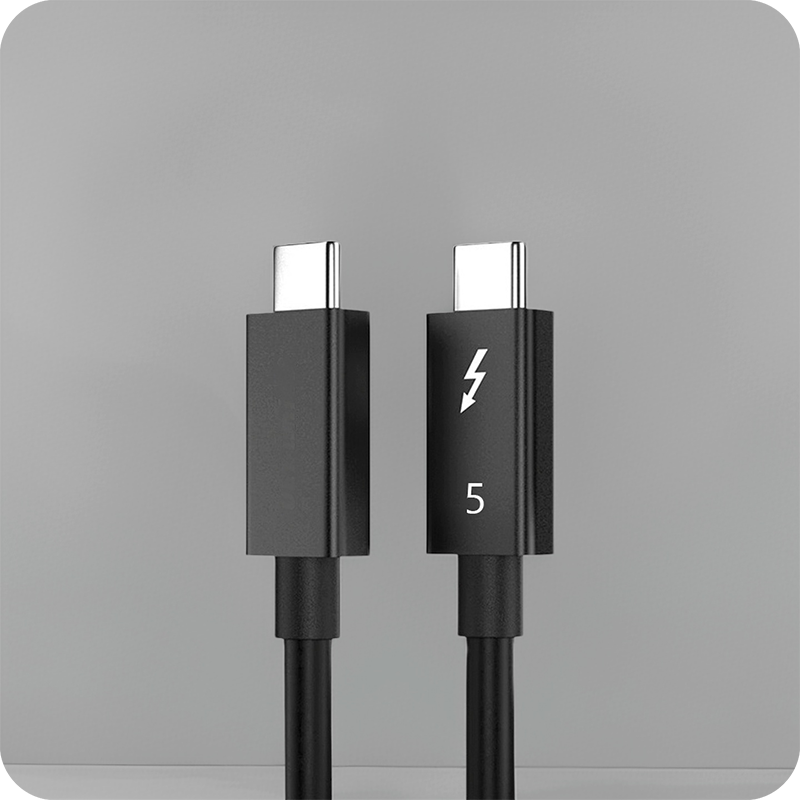
| eGPU User | Thunderbolt 4 Certified Cable | PCIe tunneling, 40Gbps, 100W |
Frequently Asked Questions (FAQ)
1. How do I know if my USB-C cable supports fast charging?
Check for USB Power Delivery (PD) support — it should be mentioned in the cable’s specifications. For charging above 100W, the cable must be EPR-rated (Extended Power Range). You can also check the cable’s label: EPR cables typically display “240W” or “48V/5A” markings.
2. Can I use a USB4 cable as a Thunderbolt 4 cable?
Yes, in most cases. USB4 and Thunderbolt 4 are designed to be interoperable. A USB4 cable will work with a Thunderbolt 4 port and vice versa. However, for eGPU setups or corporate environments requiring Intel VT-d DMA protection, a certified Thunderbolt 4 cable is recommended.
3. Does cable length affect charging speed?
Yes. Very long cables (3m+) can experience voltage drop at high currents, which reduces effective charging speed. For 240W charging, Eilinks Electronics recommends keeping cable runs under 2 meters for optimal performance, or using an active EPR-rated cable for longer distances.
4. My laptop has a USB4 port. What is the best cable for it?
It depends on your needs. For pure charging, an EPR USB-C 240W cable is ideal. For data + charging, a USB4 40Gbps cable covers most use cases. For maximum throughput with cutting-edge NVMe drives, a USB4 2.0 80Gbps cable is the best choice.
5. Why should I buy from Eilinks Electronics instead of Amazon?
Eilinks Electronics is a dedicated USB-C cable manufacturer with USB-IF certification, rigorous in-house testing, and a global supply chain. Every cable is tested for signal integrity, power delivery accuracy, and thermal safety before shipping. We back our products with technical support and warranty coverage. Learn more about our manufacturing standards.
