
logo
✕
  • Home
  • Products
  • About Us
    • Blog
  • Contact
logo
  • Home
  • Products

    USB-C Cable

    • USB 4.0
    • USB 3.2
    • USB 3.0
    • USB 2.0

    Thunderbolt 5/4/3 Cable

    • Thunderbolt 5 Cable
    • Thunderbolt 4 Cable
    • Thunderbolt 3 Cable

    Audio/video Adapter Cable

    • DisplayPort To HDMI Cable
    • HDMI To DispalyPort Cable
    • HDMI To USB-C Cable
    • USB-C To DisplayPort Cable
    • USB-C To HDMI Cable

    USB-C Adapter

    • USB 4.0
    • USB 3.2
    • USB 3.0
    • USB 2.0
  • About Us
    • Blog
  • Contact
✕
No results See all results
Published by eadmin on 2026-05-29
Categories
  • Blog
Tags

USB-C Cable for KVM Switches: Multi-Computer Control and Streaming Setup Guide

Modern workflows increasingly demand that a single desk support multiple computers. A content creator might edit video on a powerful desktop while monitoring chat and stream controls on a laptop. A software developer might switch between a Windows test machine and a macOS development workstation throughout the day. A financial analyst might run trading platforms across two or three PCs simultaneously. The KVM (Keyboard, Video, Mouse) switch makes this possible with a single set of peripherals, and the cables connecting everything are the unsung heroes of these setups. A poor-quality USB-C cable in a KVM chain introduces latency, causes display flickering, or prevents the switch from detecting a connected computer at all. Eilinks Electronics engineers cables specifically tested for KVM switch compatibility across all major brands.

This guide explains how to select, configure, and deploy USB-C cables in KVM switch environments. We cover bandwidth requirements for different display configurations, USB-C hub integration strategies, EDID management considerations, and troubleshooting the most common KVM issues that trace back to cable selection.
USB-C cable product image from <strong>Eilinks Electronics</strong>” class=”ei-article-img” loading=”lazy”></div>
<h2>How USB-C KVM Switches Work</h2>
<p>A USB-C KVM switch consolidates video, USB data, and sometimes power delivery through a single connection to each computer. When you press the switch button or use a keyboard shortcut, the KVM routes the display signal from the selected computer to your monitors and redirects USB peripheral data to that same computer. This all happens through <strong>USB-C cable</strong> connections that carry DisplayPort Alt Mode video, USB 3.2 data, and USB Power Delivery simultaneously.</p>
<p>The challenge is that not all USB-C cables support all three of these protocols at the same bandwidth tiers. A cable that charges your laptop perfectly may be limited to USB 2.0 data speeds, which introduces noticeable mouse and keyboard latency through a KVM switch. A cable that transfers files at 10Gbps may not support the DisplayPort Alt Mode required for video passthrough. Understanding these capability layers is essential for building a reliable KVM setup.</p>
<h3>Single-Cable vs. Multi-Cable KVM Architectures</h3>
<p>Entry-level KVM switches typically use separate cables for video and USB data — HDMI or DisplayPort for display, and USB-B or USB-C for peripherals. Higher-end KVMs, particularly those designed for Thunderbolt or USB4 hosts, consolidate everything into a single <strong>USB-C cable</strong> per computer. Single-cable setups are cleaner but demand more from each cable: the cable must simultaneously handle video, USB data, and often power delivery without crosstalk between these signal types. Cables with inadequate internal shielding between video pairs and USB data pairs produce visible interference patterns on connected displays.</p>
<h2>Bandwidth Planning for Multi-Monitor KVM Deployments</h2>
<p>KVM bandwidth requirements scale with your display configuration. Each monitor at a given resolution and refresh rate demands a specific amount of DisplayPort bandwidth, and your cables must accommodate the sum of all active displays:</p>
<table border= Display Configuration Total Bandwidth Required USB-C Specification Needed KVM Type Single 1080p60 ~3.2 Gbps USB 3.2 Gen 1 + DP Alt Mode USB-C DP Alt Mode KVM Single 4K60 ~12.5 Gbps USB 3.2 Gen 2 + DP Alt Mode 1.4 USB-C DP Alt Mode KVM Dual 4K60 ~25 Gbps USB4 40Gbps or Thunderbolt 4 Thunderbolt 4 KVM Dock Single 5K60 / 8K30 ~22-26 Gbps USB4 40Gbps or Thunderbolt 4 Thunderbolt 4 KVM Dock Dual 5K60 ~44-52 Gbps Thunderbolt 5 Thunderbolt 5 KVM Dock

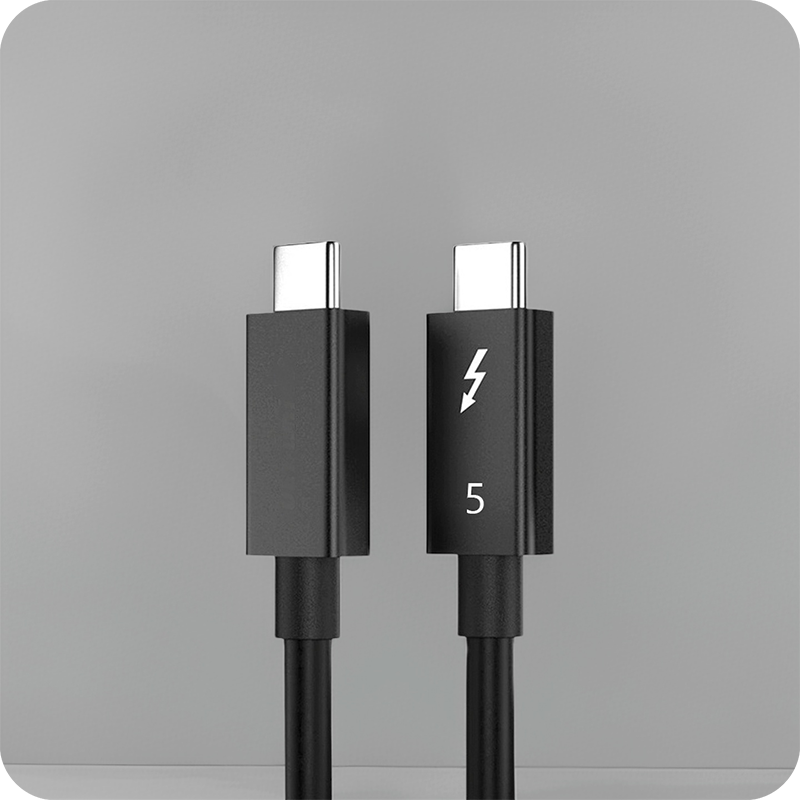
For dual 4K60 setups, a Thunderbolt 4 Cable or USB4 Cable rated at 40Gbps is the minimum viable option. Attempting dual 4K60 through a 20Gbps USB4 connection forces DisplayPort stream compression, which can introduce visible artifacts in fast-moving content. Similarly, a Thunderbolt 5 Cable at 80Gbps provides headroom for dual 5K60 or single 8K60 configurations that are becoming increasingly common in professional workflows.

EDID Management and Cable Compatibility
USB-C cable product image from <strong>Eilinks Electronics</strong>” class=”ei-article-img” loading=”lazy”></div>
<p>EDID (Extended Display Identification Data) is the protocol through which a monitor tells a computer what resolutions and refresh rates it supports. In a KVM setup, the switch must either pass through the monitor’s native EDID to the computer or emulate it. Many KVM switches use EDID emulation so that computers perceive a monitor as always connected, even when switched to a different machine. This prevents window rearrangement and resolution changes every time you switch between computers.</p>
<p>Poor-quality <strong>USB-C cable</strong> assemblies can corrupt EDID communication because the DDC (Display Data Channel) that carries EDID information operates on a separate I2C bus within the USB-C connector. If the cable’s connector has marginal contact on the auxiliary channel pins (SBU1/SBU2), the KVM may fail to read the monitor EDID correctly, resulting in incorrect resolution detection or no display output at all. At <strong>Eilinks Electronics</strong>, we verify AUX channel signal integrity on every production cable batch using automated test equipment, ensuring reliable EDID communication through KVM switches.</p>
<h2>USB Peripheral Latency Through KVM Switches</h2>
<p>For most office productivity tasks, the USB 2.0 data rate of 480Mbps provided by a basic <strong>USB-C cable</strong> is sufficient for keyboard and mouse operation. However, if you connect storage devices, webcams, or audio interfaces through the KVM’s USB hub, the aggregate bandwidth demand can exceed USB 2.0 limits. This is particularly relevant for content creators who route a USB microphone, webcam, and external storage through the same KVM switch.</p>
<p>A <strong><a href=USB 3.2 Cable supporting 10Gbps through the KVM provides sufficient bandwidth for multiple high-data-rate peripherals simultaneously. When evaluating cables for this purpose, look for explicit “USB 3.2 Gen 2” or “SuperSpeed USB 10Gbps” markings rather than generic “USB-C” labels. The latter may indicate a charge-only or USB 2.0-only cable that will cause your KVM’s USB hub to negotiate down to USB 2.0 speeds.

Hot-Swapping and Connection Reliability

A common pain point in KVM setups is unreliable hot-swap behavior — connecting or disconnecting a computer while the KVM is powered on. The USB-C connector is specified for 10,000 mating cycles, but cheap connectors using thin gold flash plating can degrade after just a few hundred cycles in a KVM environment where cables may be plugged and unplugged daily.

Connectors with 30-micron gold plating over nickel underplate, as used in Eilinks Electronics premium cables, maintain consistent contact resistance well beyond 10,000 cycles. For KVM deployments where computers are regularly swapped — such as test benches, repair stations, or hot-desking environments — connector durability directly impacts reliability and user frustration.

Power Delivery in KVM Environments

Many USB-C KVM switches support upstream power delivery, charging the connected laptop while simultaneously routing video and USB data. This requires a USB-C cable that supports the full USB PD power profile needed by the host computer. A cable rated for 60W will fail to charge a 100W laptop, potentially causing the computer to enter low-power mode or gradually drain its battery during use.

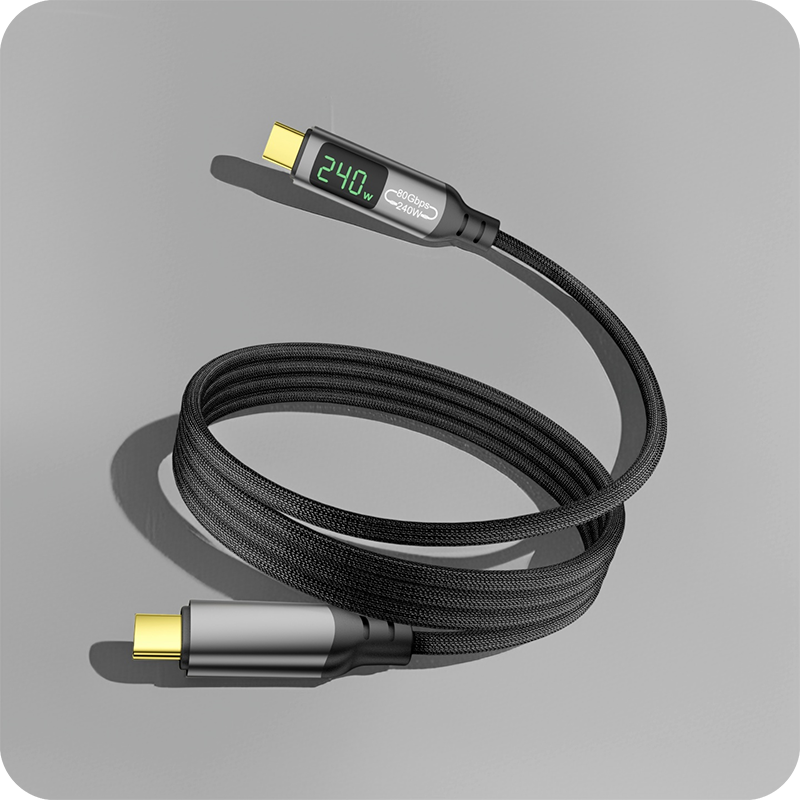
For KVM deployments supporting high-performance laptops with discrete GPUs, we recommend cables rated at 100W (20V/5A) or 240W via EPR cable specification. The eMarker chip in these cables communicates the power rating to both the KVM dock and the laptop, preventing overcurrent conditions. If your KVM supports pass-through charging, the power path flows through the KVM switch, through the cable, and into the laptop — every component in this chain must be rated for the full power level.

Recommended Cable Configurations by Use Case

Use Case KVM Type Recommended Cable Key Specs
Office dual PC (1080p) USB-C DP Alt Mode KVM USB 3.2 Gen 2 Cable 10Gbps + DP Alt Mode + 60W PD
Content creator dual 4K Thunderbolt 4 KVM Dock Thunderbolt 4 Cable 40Gbps + dual 4K60 + 100W PD
Developer macOS + Windows USB-C KVM with separate video USB 3.2 Gen 2 Cable (data) + HDMI (video) 10Gbps data + independent video path
Production studio multi-4K Thunderbolt 5 KVM Thunderbolt 5 Cable 80Gbps + triple 4K + 240W PD
Test bench / repair station Basic USB-C KVM USB 3.2 Gen 2 Cable 10Gbps + durable connector plating

Troubleshooting Common KVM Cable Issues

At Eilinks Electronics, our support team frequently helps customers resolve KVM issues that ultimately trace back to cable selection. The most common symptoms and their likely causes:

  • Display not detected after KVM switch: AUX channel (SBU1/SBU2) failure in the USB-C cable. Try a cable with verified AUX channel integrity.
  • USB devices disconnect when switching: USB enumeration timeout due to slow data negotiation. Use a fully-featured USB 3.2 cable rather than a charge-only cable.
  • Screen flickering at 4K60: Marginal signal integrity at the cable’s bandwidth limit. Upgrade to a USB4 or Thunderbolt 4 cable with better shielding and shorter length.
  • Laptop not charging through KVM: Cable power rating below the laptop’s requirement. Verify the cable supports the necessary PD profile.
  • Intermittent USB peripheral recognition: VBUS voltage drop in a long cable causing USB hub brownout. Shorten cable length or use an active cable with built-in signal conditioning.

Conclusion

A KVM switch is only as reliable as the cables connecting it. Investing in properly specified USB-C cable assemblies — with verified bandwidth, AUX channel integrity, sufficient power delivery rating, and durable connector construction — eliminates the majority of KVM-related frustrations before they occur. Whether you are managing two office PCs, running a dual-4K content creation desk, or operating a high-throughput test bench, Eilinks Electronics has the cable solution engineered for your specific KVM deployment. Our cables are tested for compatibility with KVM switches from TESmart, Level1Techs, ConnectPro, Sabrent, and all major Thunderbolt dock manufacturers.

Building or upgrading a KVM setup?

Browse our USB4 and Thunderbolt cables tested for KVM switch compatibility, with full DisplayPort Alt Mode and USB PD support.

Shop KVM-Ready USB-C Cables

eadmin
eadmin

Related posts

2026-05-30

USB-C Cable for AI GPU Cluster & Data Center Interconnect Guide 2026


Read more
2026-05-30

USB-C for 8K Video Transmission & DisplayPort Alt Mode Deep Dive 2026


Read more
2026-05-30

USB-C Cable Insertion Durability & Mating Cycle Rating Guide 2026


Read more

Leave a Reply Cancel reply

Your email address will not be published. Required fields are marked *

Navigation

  • About
  • Contact

Products

  • USB-C Adapter
  • Thunderbolt 5/4/3 Cable
  • Audio/video Adapter Cable
  • USB-C Cable

Contacts

+86 13242969135
Sales@eilinks.com
Chashan Town, Dongguan City, Guangdong , China
© Dongguan Eilinks Eletronics Co.,Ltd All Rights Reserved
WhatsApp
  • Consent
  • Details
  • About Cookies

This website uses cookies

We use cookies to personalise content and ads, to provide social media features and to analyse our traffic. We also share information about your use of our site with our social media, advertising and analytics partners who may combine it with other information that you’ve provided to them or that they’ve collected from your use of their services.

Necessary

Necessary cookies help make a website usable by enabling basic functions like page navigation and access to secure areas of the website. The website cannot function properly without these cookies.

Analytics & Performance

Statistic cookies help website owners to understand how visitors interact with websites by collecting and reporting information anonymously.

Marketing

Marketing cookies are used to track visitors across websites. The intention is to display ads that are relevant and engaging for the individual user and thereby more valuable for publishers and third party advertisers.

Cookies are small text files that can be used by websites to make a user's experience more efficient.

The law states that we can store cookies on your device if they are strictly necessary for the operation of this site. For all other types of cookies we need your permission. This means that cookies which are categorized as necessary, are processed based on GDPR Art. 6 (1) (f). All other cookies, meaning those from the categories preferences and marketing, are processed based on GDPR Art. 6 (1) (a) GDPR.

This site uses different types of cookies. Some cookies are placed by third party services that appear on our pages.

You can at any time change or withdraw your consent from the Cookie Declaration on our website.

Learn more about who we are, how you can contact us and how we process personal data in our Privacy Policy.

Please state your consent ID and date when you contact us regarding your consent.

Deny Customize Allow selected Allow all