
USB-C Data Transfer Speed Comparison 2026: From USB 2.0 to USB4 80Gbps
Understanding USB-C data transfer speeds can be confusing, with overlapping naming conventions, multiple generations, and varying real-world performance. This comprehensive guide by Eilinks Electronics clarifies every USB speed standard, compares real-world performance, and helps you choose the right USB-C cable for your data transfer needs in 2026.
The USB Speed Landscape in 2026
The USB Implementers Forum (USB-IF) has significantly reorganized USB naming conventions over the past few years, creating a clearer (though still somewhat confusing) hierarchy of speed tiers. Here is the complete picture as of 2026:
| Marketing Name | USB Generation | Max Speed | Required Cable |
|---|---|---|---|
| USB 2.0 | USB 2.0 | 480 Mbps | USB 2.0 Cable |
| USB 5Gbps | USB 3.2 Gen 1 | 5 Gbps | USB 3.2 Cable |
| USB 10Gbps | USB 3.2 Gen 2 | 10 Gbps | USB 3.2 Cable |
| USB 20Gbps | USB 3.2 Gen 2×2 | 20 Gbps | USB 3.2 Gen 2×2 Cable |
| USB 40Gbps | USB4 Gen 3×2 | 40 Gbps | USB4 Cable |
| USB 80Gbps | USB4 Version 2.0 | 80 Gbps | USB4 V2 Cable |
| Thunderbolt 4 | USB4-based | 40 Gbps | Thunderbolt 4 Cable |
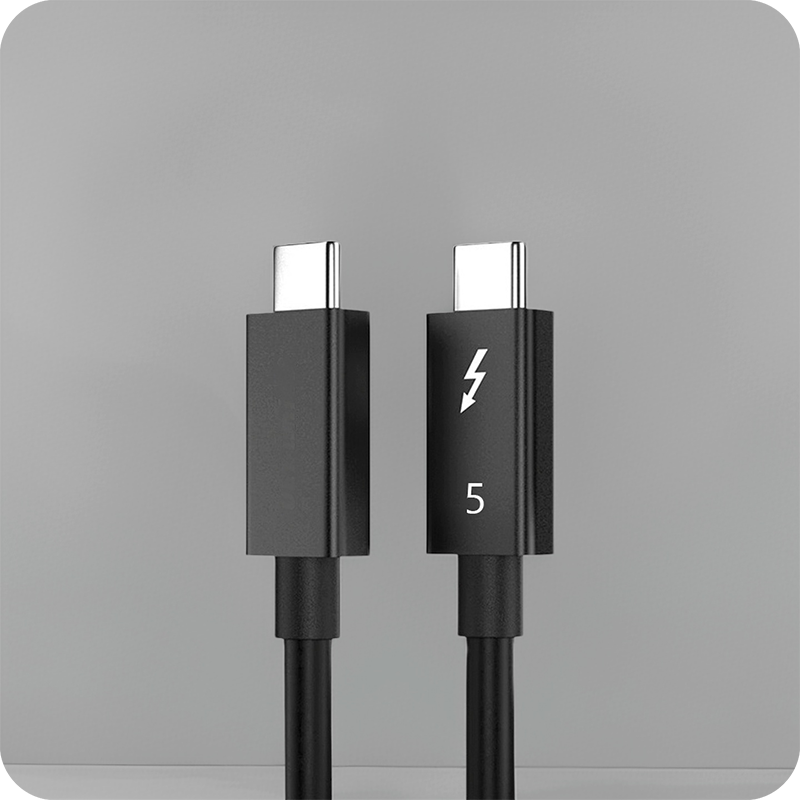
| Thunderbolt 5 | USB4 V2-based | 80 Gbps (120Gbps asym) | Thunderbolt 5 Cable |
Note that the marketing speed (e.g., “10Gbps”) is the theoretical maximum. Real-world throughput is typically 70-85% of the rated speed due to protocol overhead, encoding, and driver efficiency.
Real-World Transfer Speed Benchmarks
To give you a practical understanding of what these speeds mean, here are estimated real-world transfer times for a 25GB file (approximately 4K video footage or a large photo library):
| USB Standard | Real-World Speed | 25GB File Transfer | Best Use Case |
|---|---|---|---|
| USB 2.0 (480 Mbps) | 30-40 MB/s | ~12 minutes | Keyboards, mice, basic peripherals |
| USB 5Gbps | 350-450 MB/s | ~70 seconds | External HDDs, USB flash drives |
| USB 10Gbps | 700-900 MB/s | ~35 seconds | NVMe SSDs, HD video editing |
| USB 20Gbps | 1.4-1.8 GB/s | ~18 seconds | 4K video workflows, SSD arrays |
| USB 40Gbps | 2.8-3.5 GB/s | ~9 seconds | 8K video, large datasets |
| USB 80Gbps | 5.5-7.0 GB/s | ~5 seconds | Professional production, eGPU |
These benchmarks demonstrate the enormous difference between USB generations. A USB4 cable at 40 Gbps transfers a 25GB file nearly 80 times faster than a USB 2.0 cable. For professionals working with large media files, the speed difference translates directly into time savings and productivity gains.
USB 3.2 Generations Explained
The USB 3.2 naming convention is the most confusing part of the USB speed hierarchy. Here is a clear breakdown:
USB 3.2 Gen 1 (5 Gbps)
Previously known as USB 3.0 and USB 3.1 Gen 1, this is the entry-level high-speed USB standard. It uses a single pair of high-speed lanes (SuperSpeed) and delivers up to 5 Gbps. A basic USB 3.2 Cable with Gen 1 support is sufficient for most everyday data transfer needs including external hard drives and fast USB flash drives.
USB 3.2 Gen 2 (10 Gbps)
Previously known as USB 3.1 Gen 2, this doubles the speed to 10 Gbps using enhanced signaling on a single pair of lanes. It matches the original USB 3.1 speed and is the sweet spot for most external SSD users. Gen 2 cables use better shielding and higher-quality conductors than Gen 1 cables.
USB 3.2 Gen 2×2 (20 Gbps)
This is where things get interesting. Gen 2×2 uses two pairs of high-speed lanes simultaneously (the “2×2” means 2 lanes, 2 directions), doubling Gen 2 speed to 20 Gbps. However, Gen 2×2 adoption has been relatively slow because it requires specific cable and controller support on both ends. It is sometimes called “SuperSpeed USB 20Gbps” in marketing materials.
USB4: The Unified Standard
USB4 (no space between USB and 4) is a revolutionary standard that unifies the USB and Thunderbolt ecosystems under a single protocol. Key features include:
- Tunneling architecture: USB4 can carry USB, DisplayPort, and PCIe protocols simultaneously over the same connection
- Thunderbolt compatibility: All USB4 devices are compatible with Thunderbolt 4 cable products
- 40 Gbps base speed: Same as Thunderbolt 4, using 2-lane operation
- USB4 Version 2.0: Doubles speed to 80 Gbps (with asymmetric 120 Gbps mode for displays)
A USB4 cable is the most versatile USB-C cable available, supporting data transfer, video output, and power delivery through a single connection. This makes it the ideal choice for modern laptops and devices.
Thunderbolt vs USB Speed Comparison
Thunderbolt and USB have historically been competing standards, but they have converged significantly with USB4 and Thunderbolt 4/5:
| Feature | Thunderbolt 4 | Thunderbolt 5 | USB4 40Gbps | USB4 V2 80Gbps |
|---|---|---|---|---|
| Bi-directional Speed | 40 Gbps | 40 Gbps | 40 Gbps | 80 Gbps |
| Asymmetric Speed | No | 120 Gbps (3 lanes tx) | No | 120 Gbps (3 lanes tx) |
| Min Display Support | Dual 4K | Triple 4K / single 8K | Single 4K | Dual 4K / single 8K |
| PCIe Tunneling | Required (32 Gbps) | Required (64 Gbps) | Optional | Optional |
| Min Cable Length | 0.8m passive | 0.8m passive | 0.8m passive | 0.8m passive |
| Certification | Intel mandatory | Intel mandatory | USB-IF | USB-IF |
For most users, a Thunderbolt 5 cable provides the best combination of speed, display support, and compatibility. However, USB4 cables offer excellent performance at lower price points for users who do not need the minimum feature guarantees of Thunderbolt certification.
Factors Affecting Real-World Speed
Cable Quality
The cable is often the bottleneck in USB-C data transfer. Signal integrity degrades with cable length, and poor shielding introduces errors that force data retransmission. A high-quality USB-C cable from a reputable manufacturer like Eilinks Electronics maintains signal integrity at rated speeds over its specified length.
Controller Chip Quality
Both the host controller (in your computer) and the device controller (in your external drive or adapter) affect real-world speed. Budget controllers may not achieve rated speeds, especially under sustained transfer loads. Look for controllers from reputable vendors like ASMedia, Realtek, or Intel.
File System and File Size
Small files transfer slower than large files due to per-file overhead. Transferring 100,000 small files takes much longer than transferring a single large file of the same total size, regardless of USB speed. The file system (NTFS, exFAT, APFS) also affects performance, with modern file systems generally performing better.
Driver and OS Optimization
Operating system USB drivers significantly impact transfer performance. Windows 11 and macOS Ventura include optimized USB drivers, but older operating systems or outdated drivers may not achieve full rated speeds. Always install the latest drivers for your USB host controller and external devices.
Choosing the Right Cable for Your Speed Needs
Basic Use (Phones, Peripherals)
A USB 2.0 Cable is sufficient for charging phones, connecting keyboards and mice, and basic data transfers. Cost: $1-3 per unit in OEM quantities.
Everyday Fast Storage
A USB 3.0 Cable (5 Gbps) handles external hard drives, fast USB flash drives, and standard backup operations. This is the most common USB speed for general use.
Professional Workflows
A USB 3.2 Cable (10 Gbps) or USB 20Gbps cable suits professional workflows involving NVMe SSDs, 4K video editing, and large dataset processing. The speed difference over USB 3.0 is dramatic for these use cases.
Maximum Performance
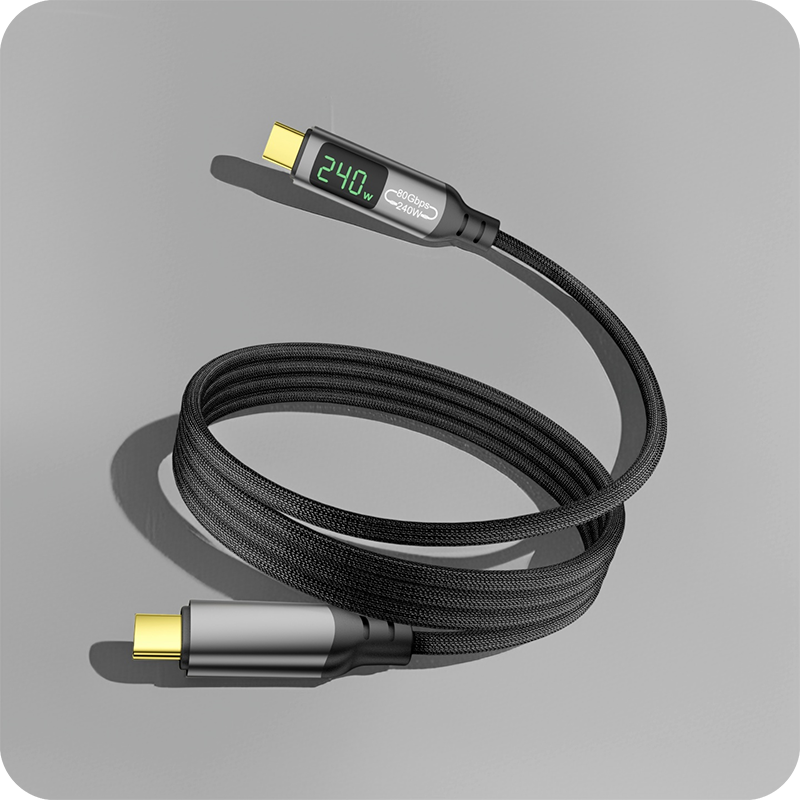
A USB4 cable (40 Gbps) or Thunderbolt 5 cable (80 Gbps) delivers the fastest possible data transfer for 8K video production, external GPU enclosures, and multi-drive RAID arrays. These premium cables represent the cutting edge of USB-C technology.
Frequently Asked Questions
Why is my USB transfer speed slower than advertised?
Several factors can reduce real-world transfer speed below the rated maximum: cable quality and length, controller chip limitations, file system overhead (smaller files transfer slower per GB), driver issues, and background system activity. Real-world speeds typically reach 70-85% of rated speeds under optimal conditions. If you are getting significantly less than 70% of rated speed, check your cable quality, update drivers, and test with large single files to isolate the bottleneck.
Is USB4 the same as Thunderbolt 4?
Not exactly, though they share the same underlying technology. USB4 is based on the Thunderbolt protocol and is compatible with Thunderbolt devices. However, Thunderbolt 4 has stricter minimum requirements including mandatory PCIe tunneling at 32 Gbps, dual 4K display support, and minimum cable length requirements. A Thunderbolt 4 cable is certified to meet these higher standards, while a USB4 cable only needs to meet the base USB4 specification.
Can I use a USB4 cable for USB 3.2 devices?
Yes, USB4 cables are fully backward compatible with all previous USB generations. A USB4 cable will work perfectly with USB 3.2, USB 3.0, and USB 2.0 devices, automatically operating at the highest speed supported by both the cable and the connected device. The USB-C connector form factor ensures physical compatibility across all generations.
Does cable length affect USB-C data speed?
Yes, significantly. Signal degradation increases with cable length, and at certain thresholds, the USB controller reduces speed to maintain data integrity. For USB4 at 40 Gbps, passive cables are limited to about 0.8 meters. For longer runs, active cables with built-in signal repeaters are required. At 5 Gbps (USB 3.2 Gen 1), quality cables can maintain full speed up to 3 meters. Always use the shortest cable that meets your needs for the best performance.
What is the difference between USB 3.2 Gen 1 and USB 3.2 Gen 2?
USB 3.2 Gen 1 operates at 5 Gbps and was previously called USB 3.0. USB 3.2 Gen 2 operates at 10 Gbps and was previously called USB 3.1 Gen 2. The main differences are speed (10 Gbps vs 5 Gbps) and the quality of internal components required. A USB 3.2 Cable rated for Gen 2 uses better shielding and higher-quality connectors than a Gen 1 cable. In practice, Gen 2 cables are backward compatible and work at Gen 1 speeds with Gen 1 devices.
