
USB-C to DisplayPort Cable Guide: Connect Your Monitor with Confidence in 2026
Connecting a USB-C laptop or desktop to a DisplayPort monitor requires the right cable. A USB-C to DisplayPort cable carries video signals through DisplayPort Alternate Mode, delivering stunning resolutions up to 8K. Whether you are upgrading your office setup or building a multi-monitor workstation, understanding how these cables work ensures you get the best picture quality and reliability. Eilinks Electronics, a professional USB-C cable manufacturer, covers everything you need to know about choosing and using USB-C to DisplayPort cables in 2026.
What Is DisplayPort Alternate Mode?
DisplayPort Alternate Mode (DP Alt Mode) allows a USB-C port to transmit native DisplayPort video signals directly. Unlike USB-based video protocols that require conversion chips, DP Alt Mode repurposes the high-speed TX/RX lanes in the USB-C connector to carry DisplayPort data natively. This means zero latency and full DisplayPort feature support, including Multi-Stream Transport (MST) for daisy-chaining multiple monitors.
For a Thunderbolt 4 cable or USB4 cable, DP Alt Mode is built into the standard. Any USB-C cable that supports USB4 or Thunderbolt also supports DP Alt Mode, provided the host device enables it.
USB-C to DisplayPort Cable vs. Adapter
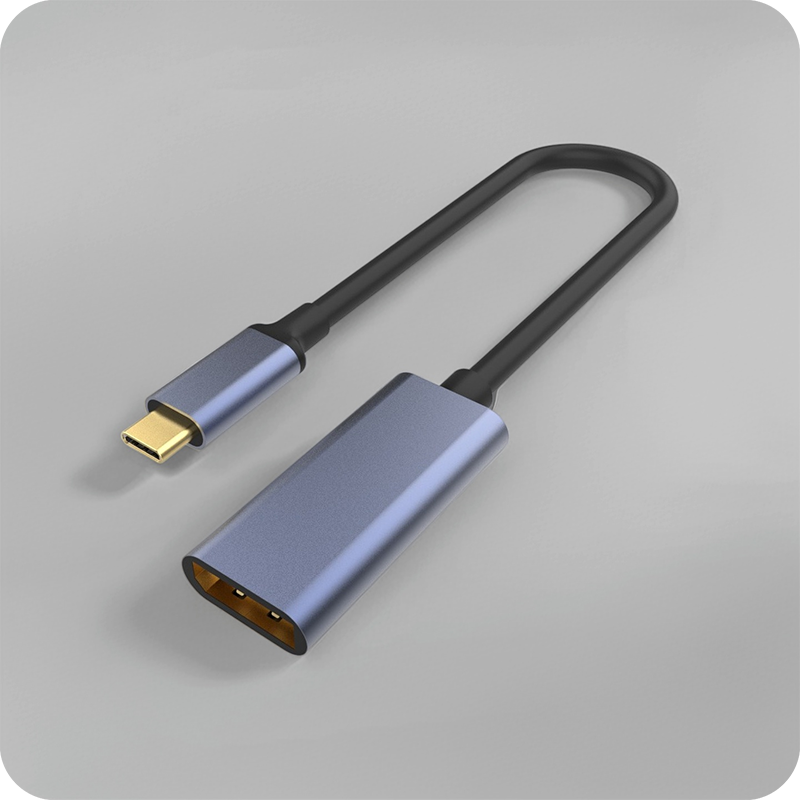
There are two ways to connect USB-C to DisplayPort: a dedicated cable with USB-C on one end and DisplayPort on the other, or a USB-C to DisplayPort adapter used with a standard DisplayPort cable. Each approach has its advantages:
| Feature | Dedicated Cable | Adapter + DP Cable |
|---|---|---|
| Signal Quality | Optimal (single connection) | Good (one extra connection point) |
| Cable Management | Cleaner (single cable) | Bulkier (two cables) |
| Flexibility | Fixed length | Any DisplayPort cable length |
| Cost | Moderate | Low to moderate |
| Best For | Permanent setups | Temporary or multi-use setups |
Resolution and Refresh Rate Support
The maximum resolution your USB-C to DisplayPort cable supports depends on the USB-C cable speed grade and the DisplayPort version:
| USB-C Speed | DP Version | Max Resolution | Max Refresh |
|---|---|---|---|
| USB 3.2 Gen 2 (10Gbps) | DP 1.4 | 4K (3840×2160) | 60Hz |
| USB4 20Gbps | DP 1.4 | 4K | 120Hz |
| USB4 40Gbps | DP 2.0 | 8K (7680×4320) | 60Hz |
| Thunderbolt 5 / USB4 80Gbps | DP 2.1 | 16K or dual 8K | 60Hz |
For most users, a USB4 cable at 40Gbps is the sweet spot, supporting 4K at 120Hz or 8K at 60Hz with DisplayPort 2.0. A Thunderbolt 5 cable at 80Gbps is overkill for single-monitor setups but ideal for dual 8K or triple 4K configurations.
Cable Length Considerations
Video signals are more sensitive to cable length than data signals. For passive USB-C to DisplayPort cables:
- 4K at 60Hz: up to 2 meters
- 4K at 120Hz: up to 1 meter
- 8K at 60Hz: up to 1 meter with USB4 40Gbps cable
Active cables with built-in signal boosters can extend these distances but cost significantly more. For workstation setups where the monitor is more than 2 meters from the computer, consider a standard DisplayPort cable with a USB-C adapter, as DisplayPort cables support longer runs at high resolutions.
Multi-Stream Transport (MST)
DisplayPort MST allows a single USB-C port to drive multiple monitors through daisy-chaining. A Thunderbolt 4 cable or USB4 cable with DP 1.4 MST can support two 4K displays at 60Hz from one USB-C port. DP 2.0/2.1 MST supports up to three 4K displays or one 8K plus one 4K display. This makes USB-C to DisplayPort connectivity ideal for professional workstations that need multiple screens without multiple ports.
Common Issues and Troubleshooting
- No signal: Verify both the host device and monitor support DP Alt Mode
- Flickering: Cable length may be too long for the resolution; try a shorter cable
- Lower-than-expected resolution: The cable may not support the required bandwidth; upgrade to a USB4-rated cable
- Audio not working: Ensure the USB-C cable carries the audio pin allocation for DP Alt Mode
Frequently Asked Questions
Can Any USB-C Cable Carry DisplayPort Video?
No. Only USB-C cables with high-speed lanes (USB 3.2 Gen 2 or higher) support DP Alt Mode. A basic USB 2.0 Cable with USB-C connectors cannot carry video. Always check the cable specification for DP Alt Mode or USB4/Thunderbolt certification.
Do I Need Thunderbolt for USB-C to DisplayPort?
No. Any USB-C cable that supports USB 3.2 Gen 2 (10Gbps) or higher can carry DP Alt Mode video. Thunderbolt certification is a superset that adds additional features like PCIe tunneling and higher minimum bandwidth, but DP Alt Mode works on standard USB-C cables.
Is USB-C to DisplayPort Better Than HDMI?
For most PC setups, DisplayPort offers advantages: higher maximum bandwidth (DP 2.1 supports 80Gbps vs HDMI 2.1 at 48Gbps), native daisy-chaining via MST, and better multi-monitor support. HDMI is preferable for home theater setups due to CEC control and wider TV compatibility.
Can I Charge My Laptop While Using USB-C to DisplayPort?
Yes, if your cable supports both DP Alt Mode and USB Power Delivery simultaneously. A full-featured USB4 cable or Thunderbolt 4 cable can carry video, data, and power (up to 100W or 240W with EPR cable certification) through a single connection. Dedicated USB-C to DisplayPort cables may not always support PD; check the cable specifications.
What Is the Maximum Refresh Rate for USB-C DisplayPort at 4K?
With a USB4 40Gbps cable and DP 2.0, you can achieve 4K at 240Hz. With a Thunderbolt 5 cable at 80Gbps and DP 2.1, 4K at 240Hz is easily supported. For competitive gaming monitors, ensure both your cable and monitor support the desired refresh rate at the target resolution.
Conclusion
A USB-C to DisplayPort cable is the most direct and reliable way to connect USB-C devices to DisplayPort monitors. With DP Alt Mode support, you get native video quality with zero conversion latency. Choose a cable rated for your target resolution and refresh rate, and source from certified manufacturers for guaranteed performance. Eilinks Electronics offers a range of USB-C to DisplayPort cables and adapters for every resolution from 1080p to 8K.
