
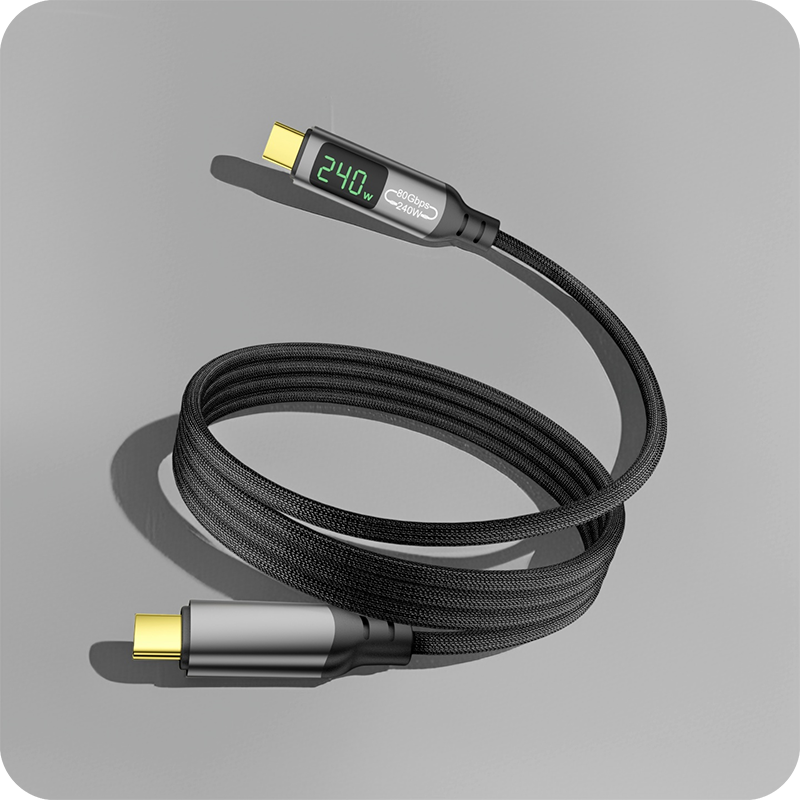
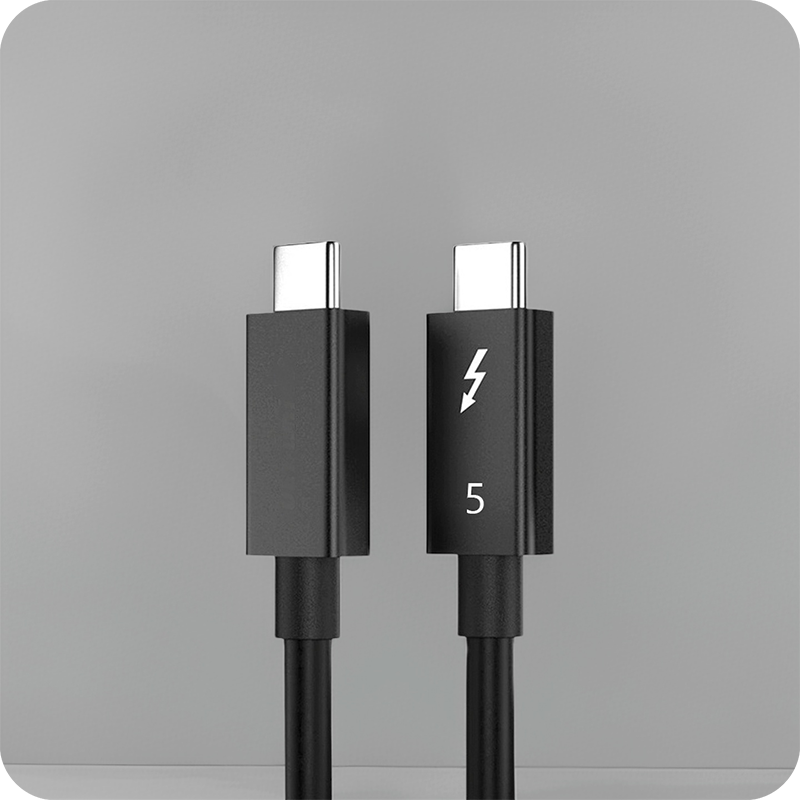
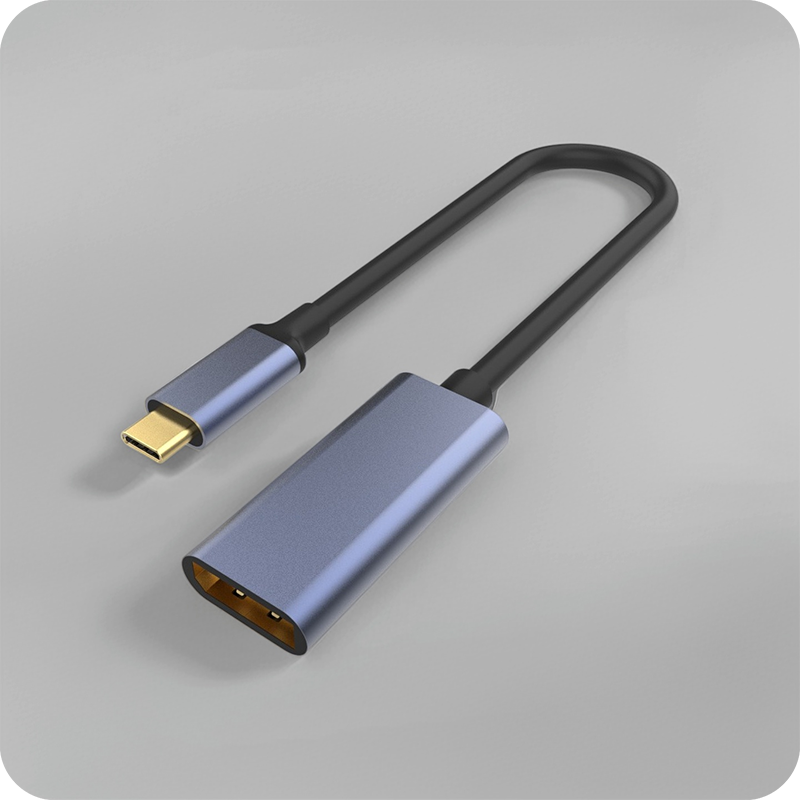
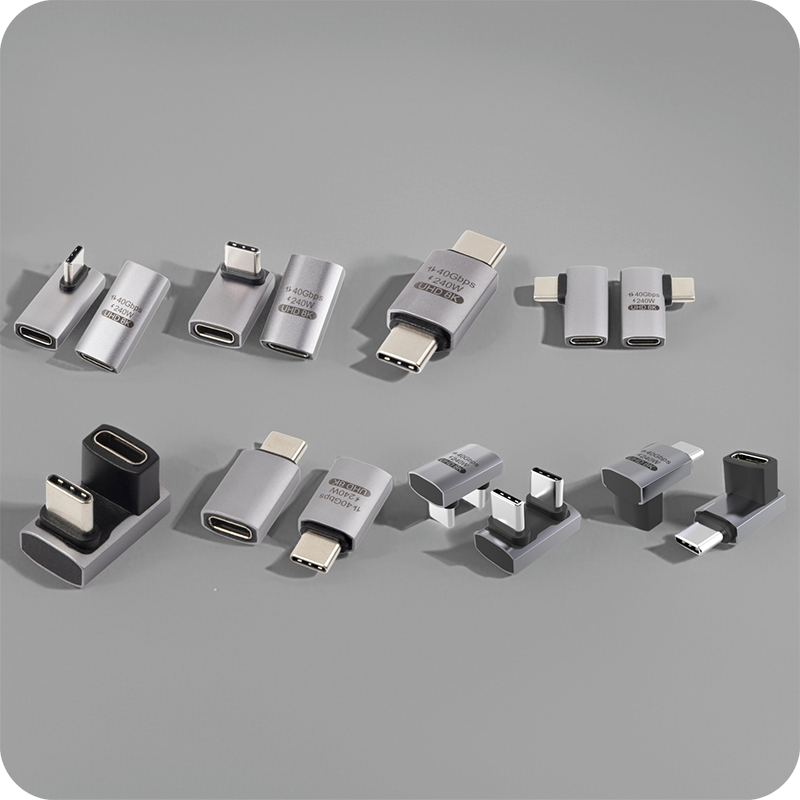
USB-C to HDMI Cable Complete Guide 2026: How to Connect Monitors, TVs, and Projectors
The demand for USB-C to HDMI connectivity has surged dramatically as laptops, tablets, and smartphones increasingly rely on USB-C as their sole port. Whether you are connecting to a 4K monitor for productivity, a TV for presentations, or a projector for conference rooms, a quality USB-C to HDMI cable or adapter is essential. As a professional USB-C cable manufacturer, Eilinks Electronics has helped thousands of businesses deploy reliable display solutions. This comprehensive guide covers everything you need to know about USB-C to HDMI technology in 2026.
Understanding USB-C DisplayPort Alternate Mode
The magic behind USB-C to HDMI connectivity lies in a feature called DisplayPort Alternate Mode (DP Alt Mode). When a USB-C port supports DP Alt Mode, it can transmit native DisplayPort signals directly through the USB-C connector. A USB-C cable with the right internal wiring can then carry these signals to an HDMI output through an active conversion chip or adapter.
How DP Alt Mode Works
DP Alt Mode reconfigures the high-speed lanes inside a USB-C cable to carry DisplayPort video data instead of USB data. Here is the process:
- The source device (laptop, phone) detects a connection to a display sink
- The USB-C controller switches from USB data mode to DP Alt Mode
- Video signals travel through the cable to an HDMI converter chip
- The chip translates DisplayPort signals into HDMI output
- The display receives the HDMI signal and renders the image
Not all USB-C ports support DP Alt Mode. Many budget smartphones and some Chromebooks only support USB data and charging through their USB-C ports, with no video output capability. Always check your device specifications before purchasing a USB-C to HDMI solution.
USB-C to HDMI Cable vs Adapter: Which Is Better?
There are two main approaches to connecting USB-C to HDMI, and each has distinct advantages depending on your use case.
| Feature | USB-C to HDMI Cable | USB-C to HDMI Adapter |
|---|---|---|
| Setup | Single cable, plug and play | Requires separate HDMI cable |
| Portability | Compact, easy to carry | Bulkier, two-piece setup |
| Max Resolution | Up to 4K@60Hz (with HDMI 2.1) | Up to 8K@60Hz (premium adapters) |
| Price | $8-$25 | $15-$60 |
| Reliability | Good for moderate lengths | Better for long cable runs |
| Multi-monitor | Single display only | Supports daisy chaining |
Eilinks Electronics manufactures both USB-C to HDMI cables and adapters, with options ranging from basic 1080p solutions to premium 4K@60Hz models. For most business and home office setups, a direct USB-C to HDMI cable offers the simplest and most cost-effective solution.
Resolution and Refresh Rate Support
The maximum resolution and refresh rate you can achieve depends on several factors: the USB-C version, the HDMI version, and the quality of the conversion chip inside the cable or adapter.
HDMI Version Capabilities
| HDMI Version | Max Resolution | Max Refresh Rate | Bandwidth | Year Released |
|---|---|---|---|---|
| HDMI 1.4 | 4K | 30Hz | 10.2 Gbps | 2009 |
| HDMI 2.0 | 4K | 60Hz | 18 Gbps | 2013 |
| HDMI 2.1 | 8K | 60Hz | 48 Gbps | 2017 |
For most users in 2026, HDMI 2.0 support delivering 4K at 60Hz is the sweet spot. HDMI 2.1 is worth the investment if you work with high refresh rate gaming monitors (144Hz at 1440p) or professional 8K displays. A high-quality USB4 cable with DP Alt Mode 2.0 can fully support HDMI 2.1 bandwidth requirements.
USB Bandwidth Requirements
The available bandwidth from your USB-C port directly impacts display quality:
- USB 3.2 Gen 1 (5 Gbps): Sufficient for 1080p@60Hz or 4K@30Hz
- USB 3.2 Gen 2 (10 Gbps): Supports 4K@60Hz with compression
- USB4 (40 Gbps): Full 4K@60Hz uncompressed, or 8K@30Hz
- Thunderbolt 4 (40 Gbps): Same as USB4 for display, plus dual 4K support
Devices equipped with a Thunderbolt 4 cable port or USB4 port deliver the best display experience, offering enough bandwidth for dual 4K monitors or a single 8K display through appropriate adapters.
Cable Length and Signal Integrity
Cable length is a critical factor for USB-C to HDMI performance. Unlike digital signals that simply work or do not, HDMI over USB-C can degrade gracefully, producing visual artifacts, color banding, or intermittent black screens when the cable is too long or poorly shielded.
Recommended Lengths
- Up to 1 meter (3.3 ft): Full bandwidth, no issues with any resolution
- 1-2 meters (3.3-6.6 ft): Good for 4K@60Hz with quality shielding
- 2-3 meters (6.6-10 ft): May need active signal boost for 4K@60Hz
- 3+ meters (10+ ft): Requires active optical cable or fiber HDMI for 4K
Eilinks Electronics uses high-purity oxygen-free copper conductors and triple-layer shielding in all USB-C to HDMI cables up to 2 meters, ensuring reliable 4K@60Hz performance. For longer runs, we offer active optical HDMI solutions that maintain signal integrity over distances up to 15 meters.
Choosing the Right USB-C to HDMI Cable for Your Device
Different devices have different USB-C port capabilities. Here is how to choose the right cable based on your source device:
MacBook Users
Apple MacBooks with USB-C/Thunderbolt ports support DP Alt Mode natively. A USB-C to HDMI cable with HDMI 2.0 support will deliver 4K@60Hz on MacBook Pro models from 2021 onwards. For M3 and M4 MacBook Pro models, a Thunderbolt 5 cable or Thunderbolt 4 cable adapter can drive even higher resolution displays.
Windows Laptop Users
Most Windows laptops from 2020 onwards with USB-C ports support DP Alt Mode. However, some gaming laptops use USB-C exclusively for data and charging, requiring a dedicated mini DisplayPort or HDMI output instead. Check your laptop manual or use the USB-IF certification database to confirm DP Alt Mode support.
Smartphone and Tablet Users
Flagship smartphones from Samsung, Google, and others support USB-C DisplayPort Alt Mode. A USB-C cable with HDMI output can turn your phone into a desktop workstation when connected to a monitor. Samsung DeX and similar desktop modes work best with HDMI 2.0 cables for smooth 1080p or 4K output.
Common Problems and Solutions
No Display Detected
If your monitor shows no signal when connected via USB-C to HDMI, try these steps:
- Verify your USB-C port supports DP Alt Mode (check device specs)
- Try a different USB-C port if your device has multiple ports
- Check that the HDMI input on your display is correctly selected
- Update your graphics drivers to the latest version
- Test with a different monitor or TV to isolate the issue
Flickering or Artifacts
Visual artifacts usually indicate signal degradation:
- Try a shorter cable length
- Ensure the cable is properly seated in both ports
- Reduce resolution or refresh rate settings
- Check for electromagnetic interference from nearby power cables
- Replace with a higher quality shielded cable from a trusted manufacturer
Audio Not Working Through HDMI
USB-C to HDMI cables should carry both video and audio. If you get video but no audio:
- Set the HDMI output as the default audio device in your OS sound settings
- Check that your display has built-in speakers
- Update your display and graphics drivers
- Try disconnecting and reconnecting the cable
USB-C to HDMI for Business and OEM Applications
For businesses deploying large numbers of workstations, conference rooms, or digital signage installations, choosing the right USB-C cable manufacturer is crucial. Eilinks Electronics offers:
- OEM customization: Custom cable lengths, colors, and connector styles
- Bulk pricing: Competitive rates for orders of 500+ units
- Quality assurance: Every cable tested for HDMI compliance and signal integrity
- Certification support: HDMI Adopter, USB-IF, and UL certification available
- Fast turnaround: Standard production in 7-10 business days
Whether you need 100 conference room adapter kits or 10,000 custom-length USB-C to HDMI cables for a laptop fleet, Eilinks Electronics delivers reliable, certified solutions at competitive prices.
Frequently Asked Questions
Can any USB-C port output HDMI video?
No. Only USB-C ports that support DisplayPort Alternate Mode (DP Alt Mode) can output video signals. Many budget devices and some USB-C ports designated as “charging only” do not support video output. Always check your device specifications or contact the manufacturer to confirm DP Alt Mode support before purchasing a USB-C to HDMI cable.
What is the maximum resolution for USB-C to HDMI?
The maximum resolution depends on the USB-C port bandwidth and the HDMI version. With a USB4 or Thunderbolt 4 cable port and an HDMI 2.1 adapter, you can achieve up to 8K@60Hz. With HDMI 2.0, the maximum is 4K@60Hz. Standard DP Alt Mode over USB 3.2 typically supports up to 4K@30Hz or 1080p@60Hz.
Do I need drivers for a USB-C to HDMI cable?
In most cases, no additional drivers are needed. USB-C to HDMI cables with built-in conversion chips use generic DisplayPort and HDMI drivers that are included with Windows, macOS, and Chrome OS. However, some premium adapters with advanced features like multi-monitor support or high refresh rates may include optional driver software for enhanced functionality.
Can I use USB-C to HDMI for gaming?
Yes, but with some limitations. For casual gaming at 1080p@60Hz, a standard USB-C to HDMI cable works well. For competitive gaming at high refresh rates (144Hz+), you need a Thunderbolt 4 cable or USB4 connection with an HDMI 2.1 adapter that supports Variable Refresh Rate (VRR) and Auto Low Latency Mode (ALLM). The total cable bandwidth and adapter chip quality directly impact input lag.
How do I know if my USB-C to HDMI cable supports 4K@60Hz?
Check the product specifications for HDMI 2.0 or higher certification and USB 3.2 Gen 2 or higher bandwidth support. Look for the HDMI Premium Certified Cable logo or USB-IF certification. A reliable USB-C cable manufacturer like Eilinks Electronics clearly labels resolution and refresh rate capabilities on all products and provides detailed specification sheets upon request.
